
Skip to content
MiLA
  • About Us
    • Gallery
    • FAQ
  • Products
    • MiLA Structure
    • MiLA Steel
    • MiLA Geo
    • MiLA MEP
    • MES Infra Software
  • Training
  • Downloads
  • Knowledge Base
    • News
    • MiLA Structure
      • Modelling
      • Design
      • Analysis
      • Results & Output
  • Contact
    • Career
  • Login
  • Register
  • What’s New
  • Toggle website search
Menu Close
  • About Us
    • Gallery
    • FAQ
  • Products
    • MiLA Structure
    • MiLA Steel
    • MiLA Geo
    • MiLA MEP
    • MES Infra Software
  • Training
  • Downloads
  • Knowledge Base
    • News
    • MiLA Structure
      • Modelling
      • Design
      • Analysis
      • Results & Output
  • Contact
    • Career
  • Login
  • Register
  • What’s New
  • Toggle website search
  • About Us
    • Gallery
    • FAQ
  • Products
    • MiLA Structure
    • MiLA Steel
    • MiLA Geo
    • MiLA MEP
    • MES Infra Software
  • Training
  • Downloads
  • Knowledge Base
    • News
    • MiLA Structure
      • Modelling
      • Design
      • Analysis
      • Results & Output
  • Contact
    • Career
  • Login
  • Register
  • What’s New

MiLA Structure

11
  • Modelling
    • Modelling Columns
    • Perspective and Orthogonal views
    • Guide to Tracing/Importing a Drawing
    • Creating Similar Units of Double Storey House using Grid Mirror & Copy Features
    • Modelling Beams
  • Analysis
    • Loading Editor
    • What is Sub-frame Analysis and Continuous Beam Analysis?
    • What is Soil Subgrade Reaction in Raft?
  • Design
    • Beam Interactive Design
    • Flat Slab Design & Analysis
  • Results & Output
    • Enhancing Concrete Quantity Estimation: The Significance of Overlapping Consideration

News

5
  • Malaysia Moves Forward with BIM: PK 1.15 Implementation Now Mandatory from July 2025
  • MiLA Structure 2025 Feature Updates
  • MiLA Structure Network License
  • Announcing MiLA Structure 2024
  • MiLA Structure 2024 Feature Updates
View Categories
  • Home
  • Docs
  • MiLA Structure
  • Design
  • Flat Slab Design & Analysis

Flat Slab Design & Analysis

mila.cpdev@gmail.com
Updated on 29/07/2024

3 min read

Introduction #

Flat slab can be defined as a two way RC Slab which is not supported by any beams. The slab loads are predominantly directly transferred to the supporting columns.
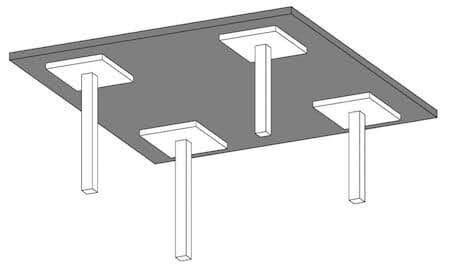
Typical flat slab with column thickenings (source: structuralguide.com)

Figure 1: Typical flat slab with column thickenings (source: structuralguide.com)

Among the advantages of using flat slab is that it offers flexibility in the design layout which gives more floor space for the designer to work with.  Reinforcement placement is also simpler in flat slabs as opposed to conventional slabs. Among other advantages of using a flat slab is ease of framework installation, enables lower building height and saves construction time. 

In MiLA Structure, flat slab includes the addition of column thickenings and column strips. This is to allow the slab to withstand more loads. Column thickenings, also known as column heads, helps to increase the shear strength of the slab. Besides that, it also reduces the effective span length, which in turn reduces the moment formed in the slab. 

Input Flat Slab in MiLA Structure #

To input flat slab in MiLA Structure, follow the steps provided below:

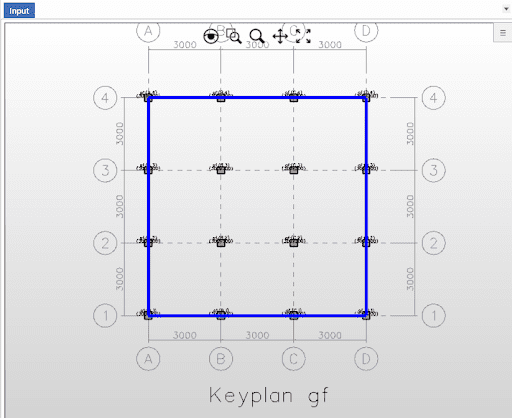
  1. Add columns
  1. Click on ‘Slab’ and draw out the perimeter of the flat slab
Inputting slab
Inputting slab
Inputting slab

Figure 2: Inputting slab

3. Click on the ‘Column Thickening’ icon

4. Click on ‘Batch Add on Column’ to add column thickening on all columns

Batch adding column thickening

Figure 3: Batch adding column thickening

5. Alternatively, click individually on the columns in the keyplan to apply column thickenings

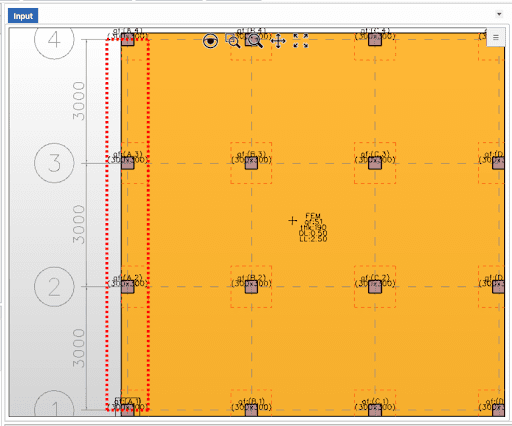
6. To input column strips, click on ‘Column Strip’ icon

7. Click on any one column and drag the strip to another column
Inputting column strip on flat slab

Figure 4: Inputting column strip on flat slab

Note that column strips can only be added in parallel or perpendicular to the columns.

Middle strips can also be added by clicking on ‘Middle Strip’ and inputting the strip between two columns. 

Flat Slab modelling in MiLA Structure

Figure 5: Flat Slab modelling in MiLA Structure

Editing Column Thickenings and Column Strips #

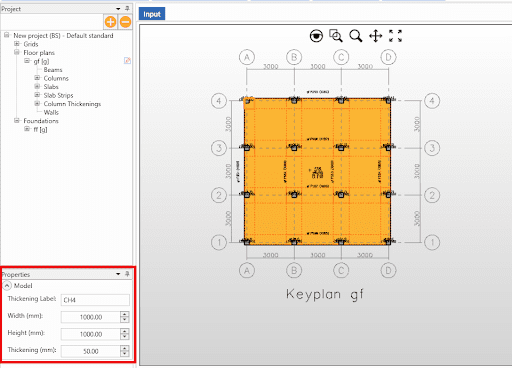
To edit the column thickenings, click on the column thickening on keyplan. Then, changes to the label, width, height and thickening size can be made in the properties tab.
Editing column thickenings

Figure 6: Editing column thickenings

Similarly, column strip label and width can be edited in the properties tab.

Design & Analysis of Flat Slab Strips #

To analyze and design the flat slab strip, click on ‘Run Analysis’. Then, in the Analysis/Design tab, click on ‘Slab Strip’.
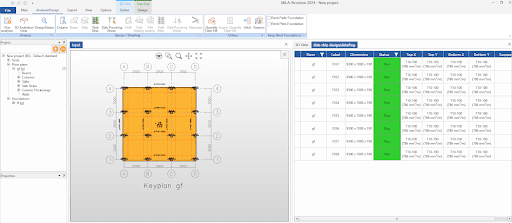
Slab strip design and detailing tab

Figure 7: Slab strip design and detailing tab

In this tab, the status of the design will be shown, together with the top and bottom reinforcements of the flat slab. To change the type of reinforcement used, click on ‘Design Slab Strip’ icon and to bring out the Editor Window. Changes can be made in this pop up window.

Design Slab Strip window

Figure 8: Design Slab Strip window

To view the output in a report format, click the ‘Simplified Report’ icon. To view the moment and shear diagrams, click on ‘Analysis Diagram’.
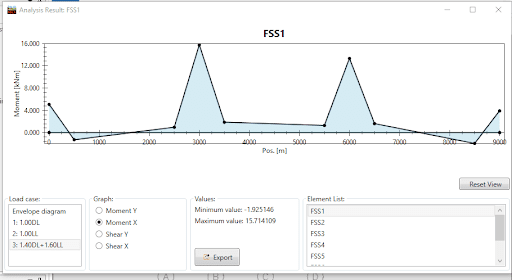
Bending moment diagram for a slab strip

Figure 9: Bending moment diagram for a slab strip

Column Head Design #

The column head design or the slab punching shear design can be viewed by clicking on ‘Slab Punching Shear’ in the Analysis/Design tab. The status of the column head is displayed in the design tab. To view the report, click on ‘Simplified Report’.

Column Head Design Tab

Figure 10: Column Head Design Tab

Tags

MiLA Structure, flat slab, column strip, column head, column thickening, punching shear, flat slab analysis, RC Slabs

Updated on 29/07/2024
MiLA Structure
Beam Interactive Design

Powered by BetterDocs

Table of Contents
  • Introduction
  • Input Flat Slab in MiLA Structure
  • Editing Column Thickenings and Column Strips
  • Design & Analysis of Flat Slab Strips
  • Column Head Design
Share This Article :
  • Facebook
  • X
  • LinkedIn
  • Pinterest
Was it helpful ?
  • Happy
  • Normal
  • Sad

Are you Interested for a

Free Demo With Us?

Click the link below to reserve a free demo. Our dedicated sales engineer will be in touch with you shortly.

Book Now

We have been offering cutting-edge infrastructure engineering software solutions since 2019, empowering professionals across Malaysia with innovative tools and expertise.

Site Links

  • support@mila-asia.com
  • +603 – 5885 1250
  • 13B, Jalan Kenari 2, Bandar Puchong Jaya, 47100 Puchong, Selangor.

Resources

About Us

Products

Training

Downloads

Knowledge Base

Contact

What's New

Follow Us

Facebook-f Youtube Linkedin

Awards & Recognition

Apicta 2024:
Winner Award of ICT Services
Merit Award for Cross Categories

Copyright © 2019-2026 MiLA Asia Sdn. Bhd.